How to Setup the ASUS Router?
To set up an ASUS router, connect your modem or ONT to the router’s WAN port, connect your phone or computer and open asusrouter.com or the appropriate router address. Then follow ASUS Quick Internet Setup (QIS) to configure your internet connection, Wi-Fi name, password and administrator credentials.
Setting up an ASUS router for the first time is usually straightforward. You do not need advanced networking knowledge and in most cases, the built-in Quick Internet Setup wizard guides you through the important steps.
The basic process is simple: connect the ASUS router to your modem or ONT, connect a phone or computer to the router, open the setup page and follow the on-screen instructions.
However, a successful ASUS router setup involves more than connecting a few cables. You also need to choose the correct WAN connection, create secure Wi-Fi credentials, set an administrator password and verify that your internet connection works correctly.
ASUS provides more than one way to complete the installation. You can use the browser-based ASUS Web GUI or the ASUS Router app, depending on your router model and preference.
This ASUS router setup guide explains both methods and covers what to do when asusrouter.com does not open, which port to use, how to configure the router with a modem and which settings you should review after installation.
What Do You Need Before Setting Up an ASUS Router?
Before starting the installation, gather everything you need. This makes the process faster and helps prevent connection problems later.
ASUS Router, Power Adapter and Ethernet Cable
You will need the ASUS router, its power adapter and at least one Ethernet cable. Most ASUS routers include an Ethernet cable in the box, but you can use a suitable Ethernet cable if necessary.
Keep the router somewhere with reasonable airflow. Avoid placing it inside a closed cabinet or directly next to devices that generate significant heat. If you are replacing an old router, do not disconnect everything immediately. First identify which cable comes from the modem or ONT.
Internet Service and ISP Information
Your internet provider may require specific information before the router can connect to the internet. Depending on your connection, you may need:
- ISP username and password
- WAN connection type
- Static IP address
- Subnet mask
- Default gateway
- DNS information
- VLAN or other ISP-specific settings
Many connections work automatically, so you may not need to enter all of these details. If you are unsure, contact your ISP before starting the ASUS router configuration.
Phone, Laptop or Computer for Setup
You can configure an ASUS router using a phone, tablet, laptop or desktop computer. A phone is convenient when using the ASUS Router app. A laptop or desktop can be useful when you want to use the browser-based Web GUI.
For the initial setup, keep at least one device close to the router.
How Should You Connect the ASUS Router to the Modem?
Correct cabling is one of the most important parts of an ASUS WiFi router setup.
Connect the Modem or ONT to the ASUS WAN Port
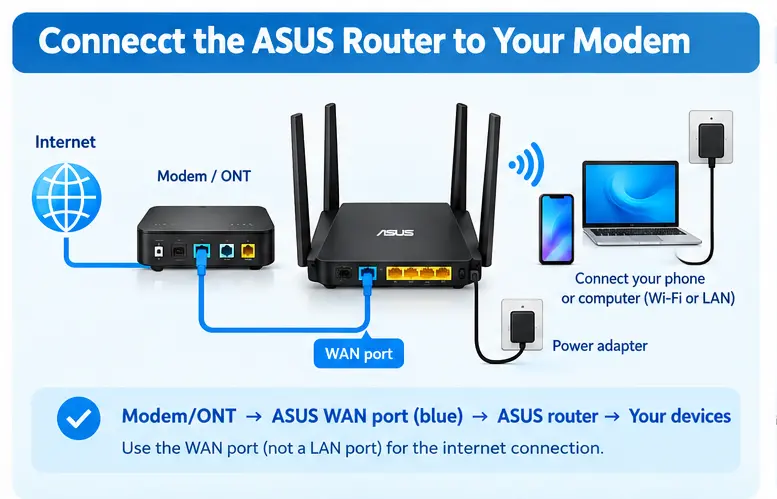
First, turn off the modem or ONT if your ISP equipment requires it. Take the Ethernet cable coming from the modem or ONT and connect it to the ASUS router’s WAN port. The WAN port is usually labeled WAN, Internet or represented by a different color or symbol depending on the model.
Do not connect the modem to one of the regular LAN ports when the router expects the internet connection through its WAN port.
The basic connection should look like this:
- Internet → Modem/ONT → ASUS WAN port → ASUS router → Your devices
If you have a modem-router combination from your ISP, the setup can be slightly different. You may need to configure the ISP device in bridge mode or use another supported network arrangement.
Connect Your Phone or Computer to the ASUS Router
You have two choices.
- Wireless connection: Connect your phone or laptop to the default Wi-Fi network shown on the router label.
- Wired connection: Connect your computer to one of the ASUS router’s LAN ports using an Ethernet cable.
A wired connection can be more reliable during the initial configuration, especially if you are troubleshooting a connection problem.
Connection | Where It Goes | Purpose |
Modem/ONT Ethernet cable | ASUS WAN port | Provides internet connection |
Computer Ethernet cable | ASUS LAN port | Wired setup and management |
Phone/Laptop Wi-Fi | ASUS wireless network | Wireless setup |
Power adapter | ASUS power port | Powers the router |
Once the cables are connected, turn on the modem or ONT and then power on the ASUS router. Give the devices a few moments to start.
How to Access the ASUS Router Setup Page
After connecting your device to the ASUS router, you can open the router’s Web GUI.
Open the ASUS Router Web GUI
Open a web browser on your connected device. Enter:
If that address does not open the setup page, ASUS routers may also use a local IP address such as:
or:
The exact address depends on the router model and network configuration. You should be connected directly to the ASUS router when trying to access its setup page.
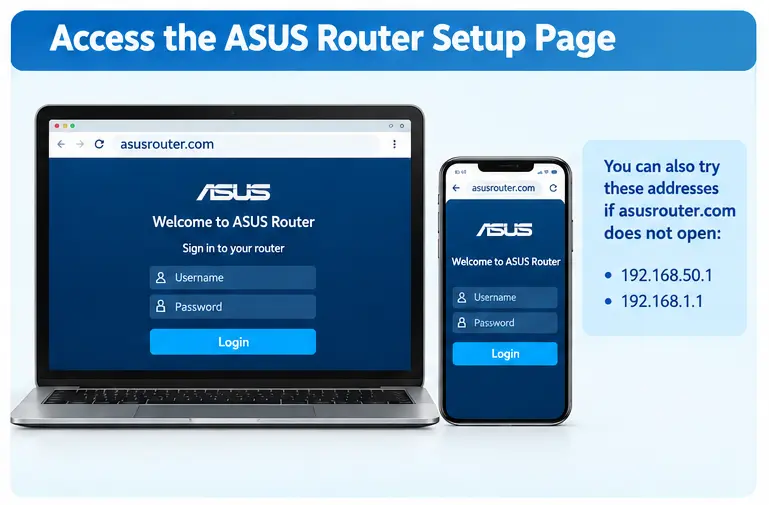
If you are using a phone, make sure mobile data does not interfere with the connection and that the phone is connected to the ASUS Wi-Fi network. If you already have an account or administrator credentials, you can use the ASUS router login page to access the router settings.
What to Do When asusrouter.com Does Not Open
There is no need to panic if asusrouter.com does not load.
Try these steps:
- Confirm that your device is connected to the ASUS router.
- Check whether the router is powered on.
- Disconnect from other Wi-Fi networks.
- Try 192.168.50.1.
- Try 192.168.1.1.
- Restart the browser.
- Try another browser or device.
- Use an Ethernet connection if available.
Check the router’s local IP address if the default addresses do not work. If you are setting up a router that has previously been configured, its network settings may affect which address you need to use.
How to Complete ASUS Quick Internet Setup (QIS)
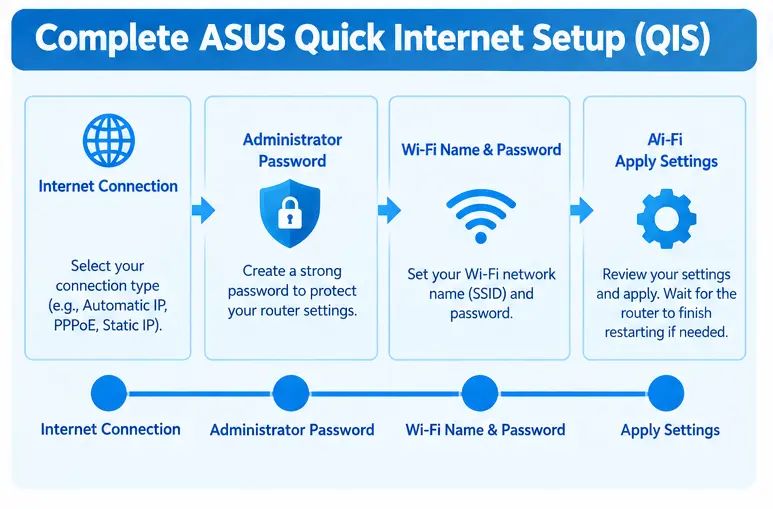
ASUS Quick Internet Setup, commonly called QIS, is designed to guide you through the main configuration steps. The exact screens can vary depending on the router model and firmware version.
Start the Quick Internet Setup Wizard
Once you open the ASUS setup page, the router may automatically launch the Quick Internet Setup wizard. Follow the on-screen instructions. If the wizard does not start automatically, look for an option related to Quick Internet Setup or initial configuration. The router may first detect your internet connection.
Select or Confirm the Internet Connection Type
ASUS may automatically detect your connection type. If it does not, select the option required by your ISP.
Common connection types include:
- Automatic IP
- PPPoE
- Static IP
For PPPoE connections, you may need to enter the username and password supplied by your ISP. For a static connection, your ISP may provide several network values. Do not guess these details. Incorrect WAN information can prevent the router from accessing the internet.
Create the ASUS Router Administrator Password
The administrator password protects your router’s settings. Create a strong, unique password that you do not use for other accounts. This password is different from your Wi-Fi password.
The administrator password is used when you access the ASUS Web GUI or other router management features. If you forget it later, you may need to perform a factory reset, depending on your router and available recovery options.
Create the Wi-Fi Network Name and Password
Next, create your wireless network. Choose a recognizable Wi-Fi name, also called an SSID. Then create a strong Wi-Fi password. Avoid using your name, phone number, address or another easily guessed detail.
If your ASUS router supports separate bands, the setup wizard may provide options for configuring them. Follow the options presented by your specific model.
Apply the Settings and Wait for the Router to Finish
Review your settings before applying them. Once you confirm the configuration, allow the ASUS router to save the settings and restart if required.
Do not unplug the router during this process. Your devices may temporarily disconnect while the router applies the new configuration. Wait until the Wi-Fi network becomes available again.
How to Set Up an ASUS Router Using the ASUS Router App
The ASUS Router app provides a convenient alternative to browser-based setup on supported routers.
First, install the ASUS Router app on your phone.
Then:
- Power on the ASUS router.
- Connect your phone to the router’s default Wi-Fi network.
- Open the ASUS Router app.
- Select the router when it is detected.
- Follow the setup instructions.
- Select or confirm the internet connection type.
- Create your Wi-Fi name and password.
- Create the administrator password.
- Apply the settings.
- Wait for the router to complete the configuration.
The exact screens and available options can vary by router model and app version. The app is particularly useful if you prefer managing the router from your phone rather than opening a browser.
How to Verify That the ASUS Router Setup Worked
Completing the setup wizard does not necessarily mean everything is working correctly. Perform a few simple checks.
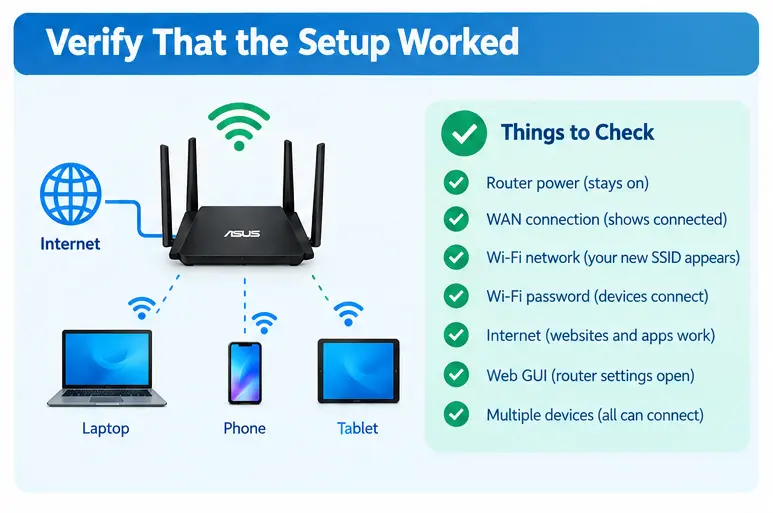
- First, confirm that your device is connected to the new Wi-Fi network.
- Then open several websites.
- If websites load normally, test another device as well.
Also check whether the router’s internet or WAN status shows an active connection. If your internet does not work, check the modem or ONT, WAN cable, ISP credentials and connection type.
What to Check | What Success Looks Like |
Router power | Router remains powered on |
WAN connection | Internet/WAN status is connected |
Wi-Fi | Your new SSID appears |
Wi-Fi password | Devices connect successfully |
Internet | Websites and apps work |
Web GUI | Router settings open normally |
Multiple devices | Phones and computers can connect |
Testing more than one device is useful because it helps determine whether the problem affects the router or only one device.
Which ASUS Router Settings Should You Configure After Setup?
Your basic setup is now complete, but there are several settings worth reviewing.
Wi-Fi security
- Use a strong Wi-Fi password and the strongest security option supported by your devices and router.
Administrator password
- Make sure your router administrator password is unique. If you later need to access your ASUS router settings, this is the credential you will use.
Firmware
- Check whether a newer firmware release is available. Keeping the firmware updated can improve security, stability and functionality. You can follow a dedicated ASUS router firmware update guide when an update is available.
Guest network
- If you frequently have visitors, consider enabling a guest network rather than sharing your primary Wi-Fi credentials.
Parental controls
- If supported by your router, review parental-control options and configure them according to your household needs.
AiMesh
- If you have additional compatible ASUS routers, you can consider creating an AiMesh network for broader wireless coverage.
Do not configure advanced options simply because they exist. Change settings when you have a clear reason to do so.
ASUS Router Setup Not Working? Try These Fixes
If your ASUS router setup fails, work through the basics before changing advanced settings.
Check the cables
- Confirm that the modem or ONT is connected to the ASUS WAN port.
- Check both ends of the Ethernet cable.
- If possible, try another Ethernet cable.
Check the modem or ONT
- Look at the status lights on your ISP equipment.
- If the modem or ONT does not have an active internet connection, the ASUS router may not be able to complete its setup.
Confirm the connection type
- If your ISP uses PPPoE, make sure you entered the correct username and password.
- If it uses a static IP or another special configuration, confirm the required details with your ISP.
Try a wired connection
- If the wireless setup is unreliable, connect your computer directly to an ASUS LAN port.
- Then open the setup page again.
Restart the network equipment
- If the setup appears stuck, restarting the modem or ONT and ASUS router may help.
- Allow each device enough time to boot before trying again.
Check the setup address
- Try asusrouter.com, 192.168.50.1 or 192.168.1.1, depending on your model.
- If you still cannot access the setup interface, consult your router’s model-specific documentation.
If the router was previously configured and is behaving unexpectedly, a factory reset may be necessary, but treat this as a last resort because it removes customized settings.
ASUS Router App vs Web GUI: Which Setup Method Should You Use?
Both methods can work well. The right choice depends on how you prefer to manage the router.
Method | Best For | Main Advantage |
ASUS Router App | Phone users | Convenient mobile setup |
ASUS Web GUI | Computer users | More direct access to router settings |
Ethernet + Web GUI | Troubleshooting | Stable wired connection |
QIS | First-time setup | Guided configuration |
For a basic first installation, the app can be the easiest choice. For advanced ASUS router configuration, the Web GUI is generally more useful because it exposes more settings.
ASUS Router Setup Best Practices
A good setup is not just about getting online. Follow these practices to keep your network easier to manage.
- Use strong credentials. Create separate passwords for Wi-Fi and router administration.
- Keep firmware current. Check ASUS support for newer firmware releases and review the issue notes before installing.
- Save important configuration information. Keep ISP details somewhere secure in case you need them later.
- Place the router carefully. Keep it in an open location with good airflow and reasonable central placement for wireless coverage.
- Avoid unnecessary changes. Advanced settings can affect network performance if configured incorrectly.
- Review connected devices. Check your router’s client list occasionally so you know which devices are using your network.
- Create a guest network when appropriate. This lets visitors access the internet without sharing your primary network credentials.
FAQs
Conclusion
A proper ASUS router setup starts with the right physical connections and ends with a tested internet connection. Connect the modem or ONT to the ASUS WAN port, connect your phone or computer and open asusrouter.com or the appropriate local router address. From there, Quick Internet Setup guides you through the main configuration steps. Create a strong Wi-Fi password, use a separate administrator password and enter your ISP information accurately when required.
Once the router is online, test several devices and review important settings such as firmware, guest networking and security. If the setup does not work, start with the cables, modem connection, WAN settings and setup address before changing advanced options.
With the correct connections and a few basic checks, most users can complete an ASUS Wi-Fi router installation without specialized networking knowledge.