
ASUS Router Login
Access your ASUS router settings, manage your Wi-Fi network, and configure advanced router features
ASUS Router Login: How to Access 192.168.1.1 and
Router Settings
Connect your phone, computer or tablet to your ASUS router, open a web browser and enter 192.168.1.1, router.asus.com or asusrouter.com. Then enter your router administrator username and password to open the ASUS WebGUI.
Important: Your ASUS router administrator password is different from your Wi-Fi password.
How to Log In to Your ASUS Router
Most ASUS routers can be managed through the browser-based ASUS WebGUI. Supported models can also be managed through the ASUS Router App. Depending on your router model and configuration, you may access the WebGUI using:
ASUS Router Login Methods
Choose the login method that best matches your setup.
192.168.1.1
What you needDevice connected to the router
Best forDirect browser access
router.asus.com / asusrouter.com
What you needDevice connected to the router
Best forQuick browser access
ASUS Router App
What you needCompatible router and smartphone
Best forMobile management
Helpful troubleshooting tip
If you are troubleshooting the router, connecting your computer directly to a LAN port using Ethernet can be helpful because it eliminates potential Wi-Fi connection problems.
ASUS Router Login Using 192.168.1.1
192.168.1.1 is a common default ASUS router IP address, although your router may use a different LAN IP after configuration changes.
Connect to Your ASUS Router
Connect your computer, phone or tablet to the ASUS router. You can use Wi-Fi if it is already configured. For troubleshooting, an Ethernet connection is often preferable.
- If your router has not been configured yet, check the product label for the default wireless network information.
Open a Web Browser
Open Chrome, Edge, Firefox, Safari or another modern browser. Enter the following directly into the browser's address bar:
Enter Your ASUS Router Credentials
If the address is correct and your device is connected to the router, the ASUS login or setup page should appear. Enter your router administrator username and password.
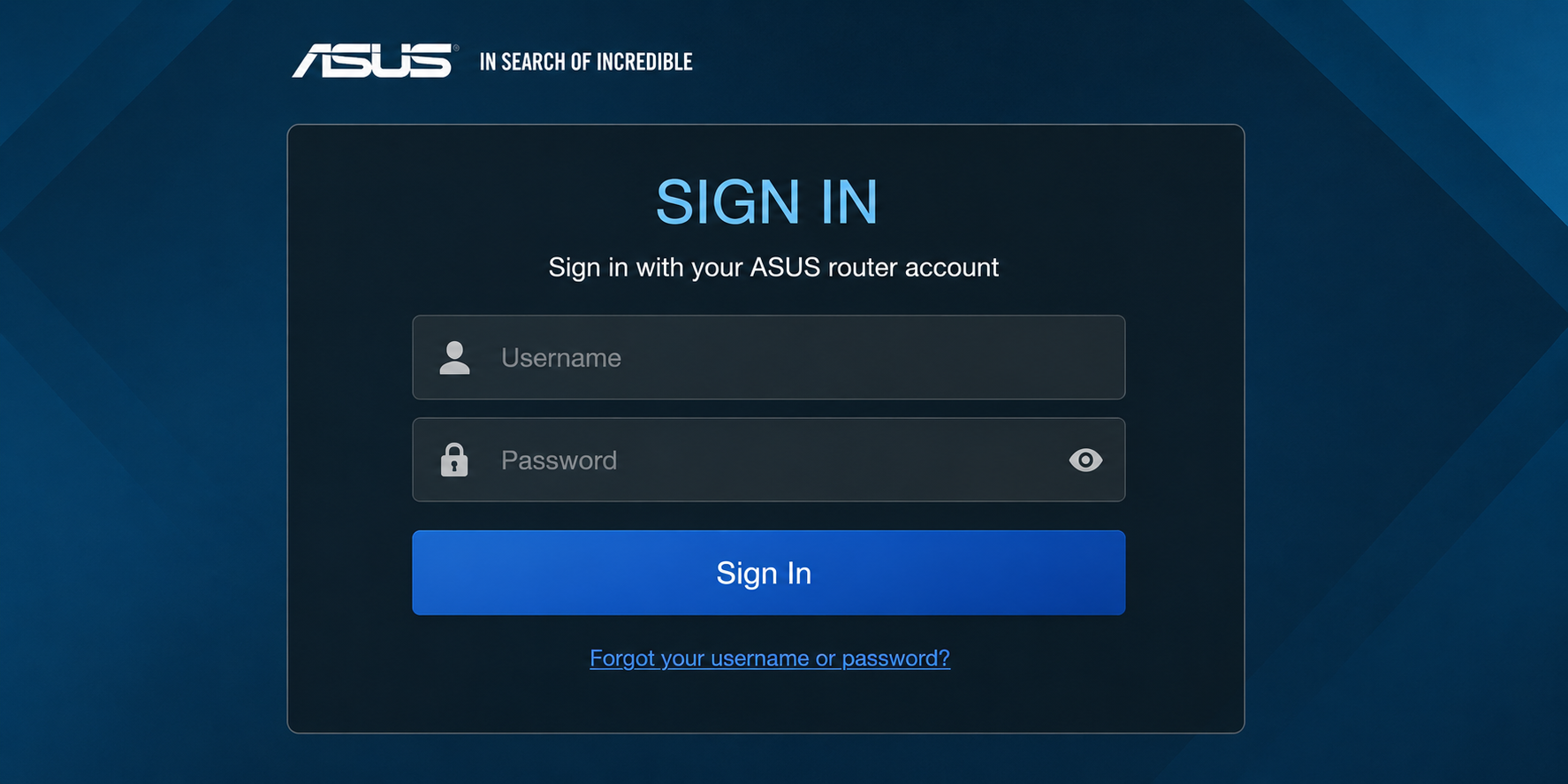
Open the ASUS WebGUI
After successful authentication, you should reach the ASUS router WebGUI. Depending on your model and firmware, you may be able to manage:
192.168.1.1 Doesn't Work?
If 192.168.1.1 does not work, don't immediately reset the router. Your router may be using a different LAN IP address. You can also try the ASUS hostname methods below.
Use router.asus.com or asusrouter.com
Access your ASUS router through an ASUS router hostname instead of entering its IP address.
Then open a browser and try one of the following ASUS router addresses. If the first address does not work, try the second one.
First Option
Open your browser and enter this address directly into the address bar.
If That Doesn't Work
Try the alternative ASUS router hostname supported by your router model.
Enter your router administrator username and password when prompted to access the router management interface.
Is router.asus.com a real website?
When you access an ASUS router management address while connected to the router, you are generally trying to reach the router's local administration interface rather than an ordinary public website.
Use the ASUS Router App
Manage your network from your phone using the ASUS Router App on supported router models.
ASUS Router App
If you prefer managing your network from a phone, the ASUS Router App can be a convenient option on supported models.
Install the ASUS Router App on your smartphone.
Connect your phone to the ASUS router's Wi-Fi network.
Open the app.
Follow the on-screen instructions to identify or configure your router.
Enter your router administrator credentials when requested.
Complete authentication.
Use the app dashboard to manage supported router functions.
The app can also support firmware upgrades on compatible routers.
The ASUS Router App can also support firmware upgrades on compatible routers.
The App Is Not a Universal Replacement for the WebGUI
Keep in mind that the app is not a universal replacement for the WebGUI. Some advanced configuration options may only be available through the browser-based interface.
ASUS Router Username and Password
One of the most common questions is: What is the default ASUS router username and password?
What Is the Default ASUS Router Login?
The answer depends on the router model and how it was originally configured. Some older or default ASUS configurations may use the following credentials:
Some models provide the default login information on the router's product label, while a previously configured router may use credentials created during setup.
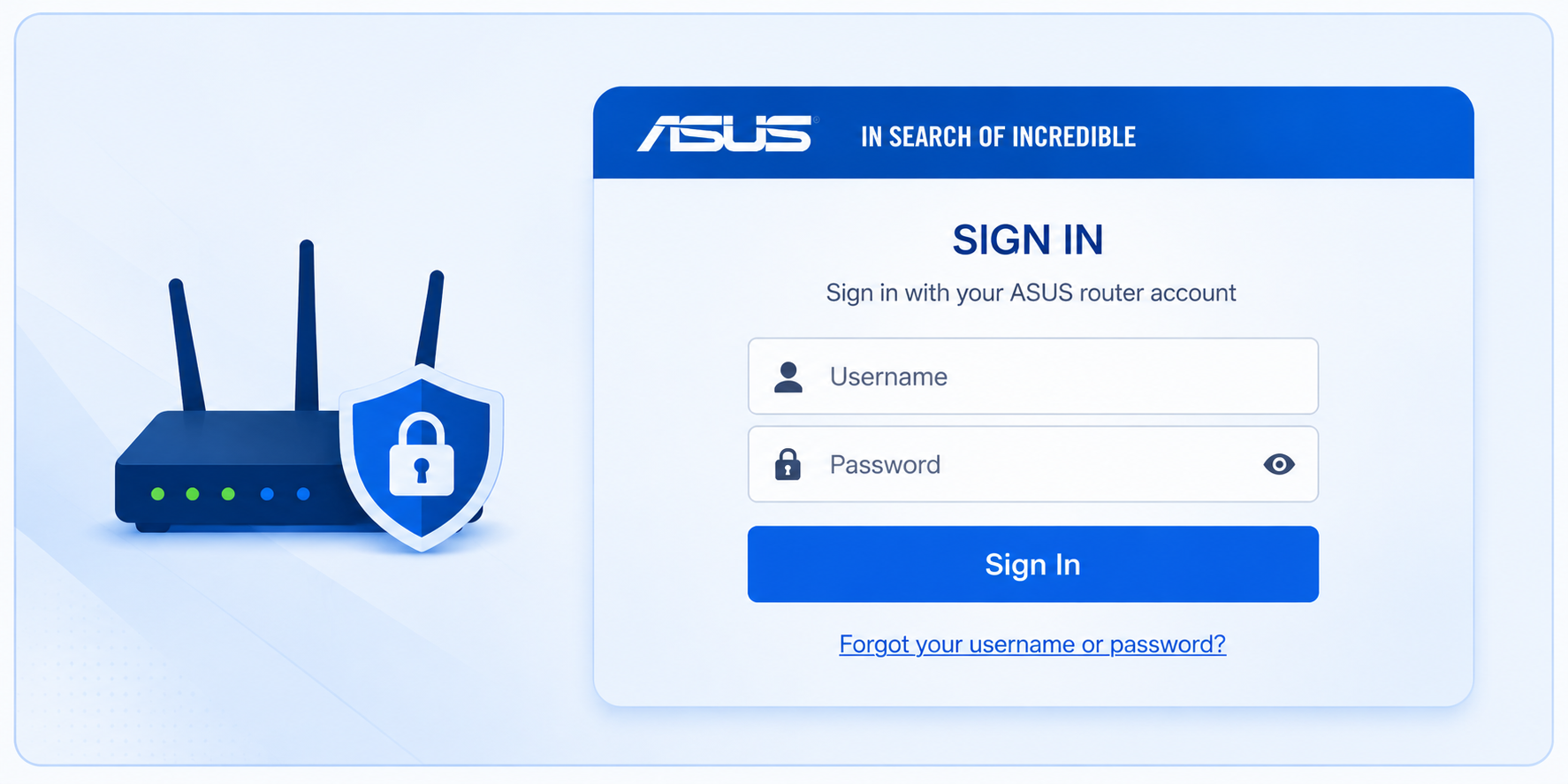
ASUS Router Credentials
| Router Situation | Username | Password | What to Do |
|---|---|---|---|
|
|
admin | admin | Try only if applicable to your model. |
|
|
As shown on label | As shown on label | Follow the router label. |
|
|
Your chosen username | Your chosen password | Use the credentials you created. |
|
|
Unknown | Unknown | Recovery or factory reset may be required. |
There is no single administrator password that applies to every ASUS router. Model, firmware generation and previous configuration can affect the credentials you need.
ASUS Router Password vs. Wi-Fi Password
This is one of the easiest mistakes to make during ASUS router login. Your Wi-Fi password allows a device to join your wireless network. Your ASUS router administrator password allows you to access and change router settings.
| Credential | Purpose | Used For |
|---|---|---|
|
|
Connect a device to Wi-Fi | Phone, laptop, TV, etc. |
|
|
Manage router settings | ASUS WebGUI and supported app functions |
|
|
Authenticate certain internet services | WAN / Internet configuration |
|
|
Access supported ASUS services | Applicable ASUS cloud / account services |
For example, if your Wi-Fi network is called HomeNetwork, the password you use to join HomeNetwork may not work on the ASUS router login page. If your Wi-Fi password works for connecting to the network but fails at the ASUS login page, you may simply be entering the wrong type of credential.
ASUS Router Login Not Working?
If the login page does not open or your credentials are rejected, work through these checks before considering a factory reset.
The ASUS Login Page Won't Open
First, check that your device is connected to the ASUS router.
- Confirm that you are connected to the correct ASUS network.
- Make sure you are not using mobile data.
- Check that you are not connected to a neighboring network.
- Check whether you are connected through a guest network that restricts router management.
If possible, connect a computer directly to a LAN port on the ASUS router using Ethernet.
Try Another Browser
If the page is blank, stuck or repeatedly redirects, try these browser troubleshooting steps:
- Open a private or incognito window.
- Try another browser.
- Close and reopen the browser.
- Clear cached site data.
- Enter the address manually instead of using an old bookmark.
Check the Router's IP Address
Do not assume that 192.168.1.1 must always be the correct address. Your router may use a different LAN IP after its configuration has been changed. If another device can access the WebGUI, check the router's network settings to identify the current address.
How to Find Your ASUS Router IP AddressRestart the Router
If the router does not respond at all, a restart may resolve a temporary software or networking problem.
A normal restart generally preserves your configuration, while a factory reset removes customized settings.
Can't Log In to ASUS Router? Check Your Credentials
If the ASUS login page appears but rejects your username or password, make sure you are using the router administrator credentials.
- Your Wi-Fi password
- Your ISP password
- Your email password
- Your ASUS account password
If you previously changed the administrator credentials, use the new credentials rather than the original defaults.
Check for Typing Mistakes
Small typing differences can cause the ASUS router to reject otherwise correct credentials. Pay attention to:
If your browser automatically fills an old password, remove it and enter the current password manually.
Forgot Your ASUS Router Password?
If you changed the administrator password and forgot it, don't immediately reset the router. A factory reset can remove customized settings such as:
If you cannot recover the customized administrator credentials, a factory reset may eventually be necessary.
Before You Reset Your ASUS Router
Before resetting the router, check the instructions for your exact ASUS model because reset procedures can vary.
Model-specific instructions can help you avoid unnecessary configuration loss and make the recovery process easier.
What to Do After ASUS Router Login
Getting into the ASUS WebGUI is only the first step. After your first successful login, consider reviewing these settings to improve your router's security, connectivity and configuration.
Important Settings to Review
Change the Administrator Password
Create a strong, unique administrator password. Don't reuse your email, banking or social-media password.
Check Your Wi-Fi Settings
Review your:
- Wi-Fi name
- Wi-Fi password
- Wireless security
- Guest network
Avoid putting unnecessary personal information in your Wi-Fi name.
Check for Firmware Update
On supported ASUS routers, firmware updates can be performed through the WebGUI and some models also support updates through the ASUS Router App. The exact menu names vary by model and firmware version.
ASUS Router Firmware Update GuideReview Connected Devices
Check the router dashboard for connected devices and investigate anything you do not recognize.
Review the connected-device list regularly and investigate unfamiliar devices.
Configure Additional Features Only When Needed
Depending on your model, you may have access to several advanced router features. Only enable or modify features when you understand their purpose or are following a model-specific guide.
Avoid changing advanced settings unless you understand their purpose or are following a model-specific guide.
ASUS Router WebGUI: What Can You Manage?
The exact options depend on your ASUS router model and firmware, but the WebGUI may include:
| Area | Examples |
|---|---|
|
🌐
General Network
|
Internet, WAN, LAN, DHCP |
|
📶
Wireless
|
SSID, password, channels, security |
|
⚙️
Administration
|
Credentials, firmware, system settings |
|
🛡️
Security
|
Firewall and access controls |
|
📱
Devices
|
Connected clients and network information |
|
🔧
Advanced Features
|
VPN, port forwarding, DNS and other settings |
|
🔗
AiMesh
|
Supported mesh-node management |
If you're unsure about a setting, check the documentation for your exact ASUS model before changing it.
ASUS Router Login by Model
ASUS has many router families and login menus can vary between models and firmware versions. Create model-specific guides as your site grows.
ROG Rapture
ZenWiFi
TUF Gaming
Only create model-specific pages when you can provide genuinely useful information specific to that model.
Frequently Asked Questions
Find quick answers to common questions about ASUS router login, passwords, WebGUI access, mobile management and firmware updates.
Not exactly. 192.168.1.1 is a private IP address, while router.asus.com is a hostname used to access the ASUS router WebGUI on supported configurations. ASUS also uses asusrouter.com for router management on supported setups.
Some older ASUS router configurations use admin as the default username and password. However, credentials vary by model and configuration. Check your router label and model-specific documentation before assuming admin/admin will work.
Common causes include an incorrect router IP address, incorrect network connection, browser problems, VPN interference or a router configuration issue. Connect directly to the ASUS router if possible and try 192.168.1.1, router.asus.com or asusrouter.com.
No. The Wi-Fi password allows devices to connect to your wireless network. The router administrator password allows you to access and change router settings.
Yes. Connect your phone to the ASUS router's Wi-Fi and use a mobile browser to access the router's local management address. Supported routers can also be managed through the ASUS Router App.
Check your router's label for model-specific credentials. If the administrator credentials were changed during setup, the original defaults may no longer work. If you have forgotten the customized password, recovery or a factory reset may be necessary.
A factory reset may be necessary if the customized administrator password cannot be recovered. Because a reset removes your customized configuration, check the instructions for your exact ASUS model before proceeding.
Yes. Supported ASUS routers can be updated through the WebGUI, while many models also support firmware updates through the ASUS Router App. The exact update process varies by model and firmware version.
For most users, the easiest way to access an ASUS router is to connect a device to the router and open 192.168.1.1, router.asus.com or asusrouter.com, depending on the model and configuration. Use your router administrator credentials, not necessarily your Wi-Fi password. If the login page doesn't open or your credentials don't work, troubleshoot the connection and router address before considering a factory reset.
Disclaimer
Router Help Desk is an independent informational website and is not affiliated with or endorsed by any router manufacturer, ISP or third-party brand mentioned on this site. Information is provided for general guidance only and may vary by device, model or software version.