
How to Reset an ASUS Router to Factory Settings
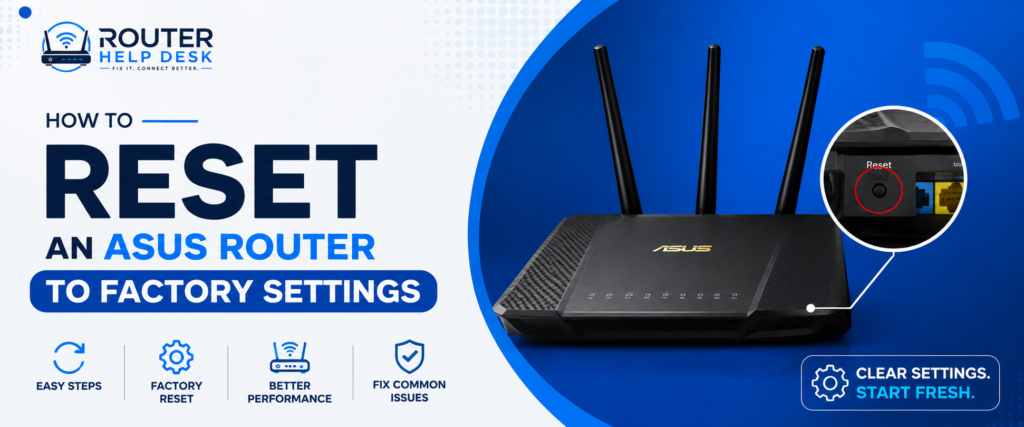
To reset an ASUS router, use the Web GUI, ASUS Router app or physical Reset button, depending on your model and access. A factory reset removes your custom settings and restores the router to its factory default state.
An ASUS router reset can fix persistent configuration problems, help when you forget the administrator password or prepare the router for a fresh setup.
However, resetting is different from simply restarting the router. A reboot only restarts the device. A factory reset removes your customized configuration and restores the router to its original factory settings.
This guide explains how to reset an ASUS router using the available methods. It also covers what to save beforehand, what happens after the reset, how to reset the router when you have forgotten the password and what to do if the normal reset does not work.
Important: ASUS notes that menu names, reset behavior and available features can vary by router model and firmware version. Always use the instructions for your specific model when they differ from the general steps below.
ASUS Router Reset vs. Reboot: What’s the Difference?
Before you reset your router, make sure you actually need a factory reset.
What happens when you reboot?
A reboot simply restarts the router. It does not normally erase your configuration. Your Wi-Fi name, Wi-Fi password, WAN settings and other customized options remain in place. A reboot is a good first step for temporary issues, such as slow connections or devices that suddenly cannot connect.
What happens when you factory reset?
An ASUS router factory reset restores the device to its factory default state.
Your customized settings are cleared. This can include:
- Wi-Fi name or SSID
- Wi-Fi password
- Administrator password
- WAN and internet settings
- Custom network rules
- Parental controls
- Other personalized configurations
ASUS specifically warns that internet settings, SSID and wireless passwords are cleared during a factory reset.
When should you reset?
A factory reset is useful when:
- You forgot the administrator username or password.
- You cannot access the router’s Web GUI.
- Incorrect settings are causing persistent problems.
- Normal troubleshooting has not fixed the issue.
- You want to start the router setup from scratch.
- You are selling or giving the router to someone else.
For a temporary connection problem, try a reboot or basic ASUS router troubleshooting first.
What to Do Before Resetting Your ASUS Router
A factory reset is straightforward, but preparation can prevent unnecessary setup problems.
Back up your router configuration
If you can still access the router, consider exporting its configuration before resetting. On supported ASUS routers, the Web GUI provides a configuration backup option under Administration > Restore/Save/Upload Setting. ASUS also supports configuration backup through its Router app on supported models.
A configuration backup can be useful if you later need to restore your previous setup.
Keep in mind that ASUS configuration files are generally intended for the same router model, so do not assume a backup from one model can be imported into another.
Record important network settings
Before resetting, write down anything you may need to configure the router again.
|
Information |
Why You May Need It |
|
ISP username and password |
Required by some internet connections |
|
WAN connection type |
Needed for manual internet setup |
|
Static IP details |
Required if your ISP uses a static connection |
|
Wi-Fi name / SSID |
Helps recreate your wireless network |
|
Wi-Fi password |
Useful if you want to keep the same credentials |
|
Custom network rules |
May need to be recreated |
If you are unsure about your WAN requirements, ask your ISP before resetting the router.
Understand what the reset will erase
A factory reset is not selective.
|
Setting |
After Factory Reset |
|
Wi-Fi name / SSID |
Custom name is removed |
|
Wi-Fi password |
Custom password is removed |
|
Administrator password |
Router returns to its factory setup state |
|
WAN settings |
Custom settings are removed |
|
Network rules |
Custom configurations are removed |
|
Parental controls |
Custom configurations may be removed |
In short, restore defaults means starting again with the router’s factory configuration.
How to Reset an ASUS Router
ASUS provides more than one way to perform a factory reset. The best method depends on whether you can access the router’s settings.
Method 1 — Reset Through the Web GUI
If you can successfully complete your ASUS router login, resetting through the Web GUI is usually convenient.
- Connect your computer or phone to the router.
- Open the ASUS router Web GUI.
- Sign in with your administrator credentials.
- Open Administration.
- Find Restore/Save/Upload Setting or the equivalent option shown on your model.
- Select the factory default or restore option.
- Confirm the reset.
- Wait for the router to restart completely.
ASUS currently documents the Web GUI path as Administration > Restore/Save/Upload Setting > Restore on supported interfaces. Menu names may differ with the model or firmware version.
Do not unplug the router while it is restoring and rebooting.
Method 2 — Reset Using the Reset Button
The physical Reset button is especially useful when you cannot access the Web GUI.
- Keep the router powered on.
- Locate the recessed ASUS router reset button.
- Use a pin or similar thin object to press it.
- Hold the button until the Power LED begins flashing.
- Release the button.
- Wait for the router to restart completely.
ASUS currently documents 5–10 seconds for many routers, with the Power LED flashing as the indication to release the button. However, ASUS also states that models can differ, so your router’s manual should take priority.
Method 3 — Reset Through the ASUS Router App
Some ASUS routers support factory reset through the ASUS Router app. On supported models, ASUS documents the app path as:
- Settings > System Settings > System reset to factory default
The exact options can vary and some models use the ASUS ExpertWiFi app instead. If you cannot find the reset option in the app, use the Web GUI or physical Reset button instead.
How to Reset an ASUS Router If You Forgot the Password
If you have forgotten the administrator password, you may not be able to access the Web GUI or app. In that case, the physical Reset button is generally the practical option.
Keep the router powered on and perform the model-specific reset procedure. On many ASUS routers, you hold the Reset button for around 5–10 seconds until the Power LED flashes, then allow the router to reboot.
The important point is that resetting without the password also means losing your customized configuration.
Afterward, you will need to complete the setup again and create a new administrator password.
What Happens After an ASUS Router Factory Reset?
Once the reset finishes, the router returns to its factory default configuration.
Your previous Wi-Fi name and password will no longer be the active custom credentials. Internet and WAN settings that you configured manually may also need to be entered again.
The router will restart during the process.
Do not judge the reset by whether your internet works immediately. A successful factory reset can leave the router waiting for its initial setup.
At this point, you can connect to the router and start the Quick Internet Setup process.
How to Set Up Your ASUS Router After Resetting
After an ASUS router reset, you need to configure the device again.
Connect to the router
Connect your computer or phone to the router using Ethernet or the default Wi-Fi information shown on the router label, when applicable.
A wired connection can be useful if you are having trouble connecting wirelessly.
Run Quick Internet Setup
Open the ASUS setup interface and follow the Quick Internet Setup instructions.
The router may detect your internet connection automatically. If it does not, select the required connection type and enter the details provided by your ISP.
Create Wi-Fi and administrator credentials
Set a new Wi-Fi name and a strong Wi-Fi password.
Then create a separate administrator password for accessing the router’s settings.
Do not use an easily guessed password.
Reconnect your devices
Your phones, computers, smart TVs, cameras and other devices may need to connect to the new Wi-Fi network.
If you recreate the same SSID and Wi-Fi password you used previously, some devices may reconnect without requiring new credentials.
Verify the internet connection
Connect a device and open a few websites.
If browsing works normally, your basic setup is complete.
You can then review additional settings and follow a detailed ASUS router setup process if required.
ASUS Router Reset Not Working? Try These Fixes
If the router does not appear to reset, check the following before assuming there is a hardware problem.
Check the Reset button
Make sure you are pressing the actual Reset button.
Some ASUS routers have multiple physical buttons, so check the label and your model’s manual.
Repeat the standard reset
Keep the router powered on and repeat the procedure carefully.
On many models, the Power LED flashing indicates that the reset has started.
Check your router model
The reset procedure is not identical across every ASUS router.
Find the exact model number and use the instructions designed for that device.
Try the model-specific hard reset
If the standard reset does not work, ASUS provides model-specific hard factory reset procedures for affected devices.
Do not guess the procedure.
The correct hard-reset method can depend on the router model and its hardware design.
How to Hard Factory Reset an ASUS Router
A hard factory reset is generally considered when the normal reset procedure does not work or when the router cannot be accessed normally.
When a hard reset is necessary
It may be appropriate when:
- The Web GUI cannot be accessed.
- You forgot the router credentials.
- The standard reset does not work.
- A firmware update caused configuration problems.
The router continues to behave incorrectly after normal troubleshooting.
Why the method varies by model
ASUS routers do not all use exactly the same hardware or reset procedure.
The Reset button location, LED behavior, timing and hard-reset process can vary.
ASUS therefore maintains model-specific instructions for situations where the standard reset does not work.
Find the correct procedure for your model
Identify the exact router model before attempting a hard reset.
Then follow the instructions provided for that model.
This is safer than applying a reset procedure found for a different ASUS router.
Should You Reset an ASUS Router After a Firmware Update?
This depends on the situation and ASUS guidance for your model.
A firmware update does not mean you should blindly reset every ASUS router. However, ASUS’s current support documentation recommends restoring factory defaults after certain firmware-update procedures and then running Quick Internet Setup again.
If the router is working normally and your model’s update instructions do not call for a reset, do not erase your configuration without a reason.
If a firmware update has caused unusual behavior, check the specific ASUS support instructions for your model before deciding to reset.
If you do reset, back up important settings first when possible.
You can further check our guide on how to update asus router firmware.
How to Reset an ASUS Router Before Selling or Giving It Away
A factory reset is an important step before transferring your router to another person.
Your router can contain customized Wi-Fi credentials, network settings and other personal configurations.
Perform a factory reset and wait for the device to complete its restart.
Do not simply change ASUS router password of wifi and hand over the router. A complete factory reset gives the next user a clean starting point.
After the reset, the new owner can complete their own ASUS router setup.
ASUS Router Reset: Quick Troubleshooting Checklist
Use this checklist to avoid common mistakes:
|
Check |
What to Do |
|
Power |
Keep the router powered on during the reset |
|
Reset button |
Confirm you are pressing the correct button |
|
LED |
Watch the Power LED for the expected reset indication |
|
Model |
Use instructions for your exact ASUS router |
|
ISP details |
Keep WAN information available |
|
Backup |
Save the configuration when possible |
|
Setup |
Reconfigure the router after resetting |
|
Firmware |
Follow model-specific firmware guidance |
If your ASUS router not working after a successful reset and fresh setup, the problem may not be the router configuration. Check the Ethernet cable, modem or ONT, ISP service, WAN details and other network equipment.
FAQs
How do I reset my ASUS router?
You can reset an ASUS router through its Web GUI, supported ASUS Router app or physical Reset button. If you can access the settings, use the software method. If you forgot the password or cannot access the interface, use the model-specific Reset button procedure.
How long do I hold the ASUS reset button?
For many ASUS routers, the Reset button is held for about 5–10 seconds until the Power LED starts flashing. However, the exact procedure can vary by model. Always follow the instructions for your specific router before releasing the button.
Does resetting delete the WiFi password?
Yes. A factory reset clears your customized wireless settings, including your Wi-Fi name and password. The router returns to its factory default state. After resetting, use the default wireless information provided for your model and create a new Wi-Fi password.
Can I reset ASUS router without the password?
Yes. If you have forgotten the administrator password, you can generally perform a factory reset using the physical Reset button. You do not need the old password for this method. However, the reset also clears your customized router and internet settings.
Why isn’t my ASUS router resetting?
First, confirm that the router is powered on and that you are using the correct Reset button. Follow the timing and LED instructions for your exact model. If the standard procedure fails, check ASUS’s model-specific hard factory reset instructions before trying again.
How do I set up ASUS router after reset?
Connect your computer or phone to the reset router, open the ASUS setup interface and follow Quick Internet Setup. Configure the internet connection, create a Wi-Fi name and password, set an administrator password, reconnect your devices and verify that internet access works.
Does every ASUS router use the same hard-reset method?
No. ASUS router models can differ in Reset button location, timing, LED behavior and hard-reset procedure. Some features also vary by firmware version. Identify your exact model and follow its official instructions instead of assuming that one reset method applies to every router.
Final Thoughts
An ASUS router reset can be an effective solution when you have forgotten the administrator password, cannot access the settings or need to start with a clean configuration. Before you reset, save important WAN details and back up your configuration if the router allows it. Remember that a factory reset removes customized settings.
For most users, the Web GUI or ASUS Router app is convenient when the router is accessible. The physical Reset button is more useful when you cannot log in.
If the standard reset does not work, do not repeatedly guess the button procedure. Identify your router model and use the appropriate ASUS instructions for a hard factory reset. Once the reset is complete, run Quick Internet Setup, create new Wi-Fi and administrator credentials, reconnect your devices and verify the internet connection.
- August 31, 2026
- Smiley Rathore
- 12:22 pm
Recent Posts
Disclaimer
Router Help Desk is an independent informational website and is not affiliated with or endorsed by any router manufacturer, ISP or third-party brand mentioned on this site. Information is provided for general guidance only and may vary by device, model or software version.