
How to Find Your ASUS Router Default Password?
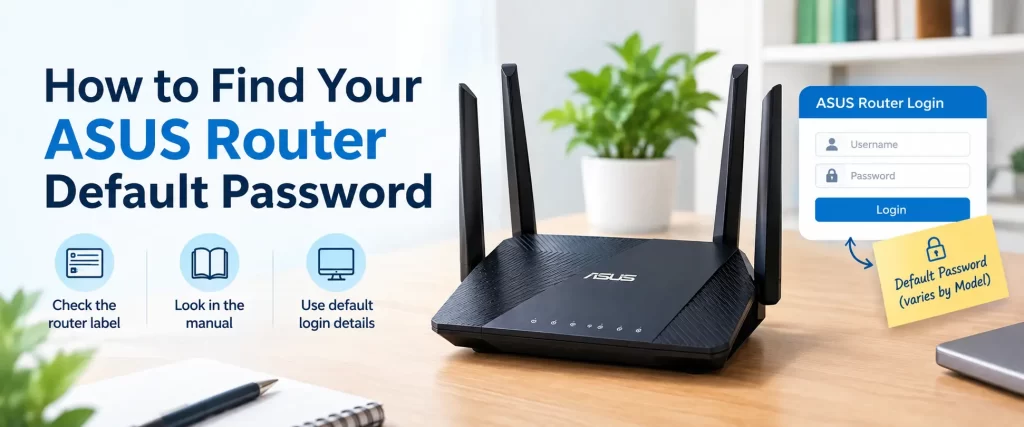
Trying to log in to your ASUS router but do not know the default password? You may need the administrator credentials to open the router settings, change your Wifi password, update firmware or troubleshoot your network.
The good news is that you can usually find the correct login information by checking the router label, reviewing your setup details or identifying whether you previously changed the administrator password.
The ASUS router default username and password may be admin and admin on some models, but this is not universal. Check the label on the back or bottom of your router and follow your model’s instructions. If you previously changed the administrator password and forgot it, you may need to factory-reset the router and configure it again.
Note: This is an independent troubleshooting guide and is not affiliated with ASUS. Login details and setup menus vary by router model and firmware version.
What Is the ASUS Router Default Password?
The ASUS router default password is the original administrator password used to access the router’s management interface. It allows you to change network settings, manage connected devices, configure security options and update firmware.
For some ASUS models, the default credentials are:
- Username: admin
- Password: admin
However, other models may display their default credentials on a product label, while some routers require you to create an administrator username and password during initial setup.
Do not assume that admin/admin will work on every ASUS router. If those details fail, check the router label and the setup information for your specific model.
Common ASUS router login details
Login detail | What you should know |
Default username | May be admin or another value printed on the router label |
Default password | May be admin, a label-specific password or a password created during setup |
Router login address | Often http://www.asusrouter.com or the router’s LAN IP address |
Wifi password | Used to connect devices to Wifi, not necessarily to access router settings |
Administrator password | Used to open and manage the router’s settings |
The login address and credentials can vary by model and configuration. If the router address does not open, make sure your device is connected to that router and consult the model’s instructions.
Where Can You Find Your ASUS Router Login Credentials?
If you do not know your ASUS router login password, check these places before trying a reset.
1. Check the router label
Look at the sticker on the back or bottom of your ASUS router. Depending on the model, it may show the default username and password, the Wifi network name (SSID) and other setup information.
Read the label carefully. The Wifi password is not necessarily the same as the administrator password.
2. Check your original setup notes
If you configured the router yourself, you may have saved the administrator credentials in a password manager or secure setup document.
Look for the credentials you created during the initial configuration. If you changed the password after setup, the original default password may no longer work.
3. Check your browser’s saved passwords
If you previously logged in through a browser, your password manager may have saved the administrator password.
Check saved entries associated with your router’s login address. Only use saved credentials on your own router or a network you are authorized to manage.
4. Check your ASUS Router app
If you have already configured your router through the ASUS Router app, open the app and review the available router settings.
The app may let you manage certain settings without entering the WebGUI through a browser. However, do not assume it can reveal a forgotten administrator password. ASUS says that if the router login password has been forgotten, a factory reset may be required.
How to Log In to an ASUS Router
Once you have the correct credentials, follow these steps to access your ASUS router’s web interface.
Step 1: Connect to your ASUS router
Connect your computer or phone to the ASUS router’s Wifi network. You can also use an Ethernet cable if your device supports it.
Make sure you are connected to the router you want to manage, especially if your home has multiple routers or Wifi access points.
Step 2: Open the router login page
Open a web browser and enter:
http://www.asusrouter.com
If that address does not work, try your router’s LAN IP address. Many ASUS routers use 192.168.1.1 by default, but the actual address may differ.
Step 3: Enter the administrator credentials
Enter the router’s username and administrator password.
If you have never configured the router, check its label and follow the initial setup instructions. Some models or firmware versions prompt you to create login credentials instead of using a universal default password.
Step 4: Open the router settings
After logging in successfully, you should see the ASUS router management interface. From there, you can manage available settings, such as Wifi configuration, connected devices, security options and firmware updates.
If you need more help accessing the settings page, see our ASUS router login guide.
What to Do If the ASUS Router Default Password Does Not Work
If the default password does not work, do not immediately reset the router. First, check whether the credentials are correct for your model.
Try these steps:
- Check the router label for the default login details.
- Confirm that you are using the administrator password, not the Wifi password.
- Check for typing errors and accidental spaces.
- Confirm that you are opening the correct router’s login page.
- Try credentials you may have created during the original setup.
- Check your password manager for a saved entry.
Remember that once you change the administrator password, the original default password usually stops working. ASUS also explains that previously changed credentials cannot be replaced by the original defaults simply by entering them again.
ASUS router password problems and quick fixes
Problem | Possible reason | What to try |
admin/admin does not work | Your model uses different credentials | Check the router label |
Login page rejects your password | Password was changed previously | Check saved credentials |
Router login page will not open | Wrong address or device is not connected | Connect to the router and verify its LAN IP |
Wifi password does not work on login page | Wifi and administrator passwords differ | Enter the administrator credentials |
You forgot the administrator password | Password is no longer known | Check saved passwords; reset if necessary |
Login details changed after setup | Initial setup created a new password | Use the password created during setup |
If you can access the router settings through the app but not the browser, check whether you are using the correct login address and credentials for the WebGUI. The exact behavior can vary by router and firmware.
What If You Forgot the ASUS Router Administrator Password?
If you changed the administrator password and cannot remember it, start by checking your saved passwords or setup notes. If you cannot recover the credentials, ASUS’s guidance is to restore the router to factory defaults and set it up again.
Before resetting, remember:
- A factory reset removes existing router configuration.
- You may need to configure your internet connection again.
- Your Wifi name and password may need to be set again.
- You will need to create a new administrator password.
Custom settings, such as guest networks or other advanced configurations, may need to be restored. If you are unsure about your internet connection settings, check with your internet service provider before proceeding.
How to Reset an ASUS Router When the Admin Password Is Lost
A factory reset may be necessary if you have forgotten the administrator password and cannot access the router settings.
Important: A factory reset is different from simply restarting the router. Restarting turns the router off and on; a factory reset erases its saved configuration.
Step 1: Identify the correct reset instructions
Find your exact ASUS router model and check its official reset instructions. The reset button location and procedure can vary.
Step 2: Prepare for the reset
If possible, collect the internet connection details provided by your ISP. Also make sure you know how to reconnect your devices after the reset.
Step 3: Follow the model-specific reset procedure
Use the reset button or procedure specified in the official instructions for your router. Do not rely on a timing sequence intended for another model.
ASUS provides instructions for restoring routers to factory defaults in its official support guide.
Step 4: Configure the router again
After the reset, connect to the router and follow the initial setup process. Depending on the model, you may need to create a new administrator account and password, configure Wifi and restore your internet connection.
For additional help, see our reset ASUS router guide and ASUS router setup instructions.
How to Change and Secure the ASUS Router Administrator Password
If you can log in successfully, changing the default administrator password is a sensible security step. A unique password helps protect your router settings from unauthorized access.
Change the password through the WebGUI
- Connect to your ASUS router.
- Open http://www.asusrouter.com or the router’s LAN IP address.
- Log in with your current administrator credentials.
- Open the administration or system settings area.
- Find the option to change the router login password.
- Enter your current password and choose a new one.
- Save the changes and sign in again with the new credentials.
The menu names may differ by model and firmware. ASUS’s official instructions describe changing the router login name and password through the WebGUI or the ASUS Router app on supported devices.
Password security tips
- Use a unique password that you do not use for other accounts.
- Choose a long password that is difficult to guess.
- Avoid obvious patterns, repeated characters or personal details.
- Store the password in a reputable password manager.
- Do not share administrator credentials unnecessarily.
- Keep router firmware updated using the instructions for your model.
ASUS recommends using a long, complex password rather than predictable sequences or common patterns.
ASUS Router Password vs Wifi Password
The ASUS router administrator password and Wifi password serve different purposes. The administrator password opens the router’s settings. The Wifi password lets your phone, laptop and other devices join the wireless network.
ASUS explicitly distinguishes the router management credentials from the Wifi credentials used to connect to the network.
Feature | Administrator password | Wifi password |
Main purpose | Access router settings | Connect devices to Wifi |
Used on | Router login page or supported management app | Phone, laptop, tablet, smart devices |
Lets you change router settings | Yes, after successful login | No, not by itself |
Where to check it | Router label, saved credentials or setup records | Router label or Wifi settings, depending on configuration |
If forgotten | Check saved credentials; reset may be necessary | Check a connected device or router settings if accessible |
If your phone connects to Wifi successfully but you cannot access the router settings, you may have the correct Wifi password but the wrong administrator password.
When Should You Contact ASUS Support?
You may need model-specific help if the router label is missing, the login page behaves unexpectedly or you cannot complete a reset and setup.
Contact official ASUS support when:
- You cannot identify the correct login credentials for your model.
- The router does not respond to the documented reset procedure.
- The router repeatedly fails during initial setup.
- You cannot restore your internet connection after a factory reset.
- The login page shows persistent errors.
- You suspect a hardware issue.
Before contacting support, note your router model, firmware version if known, the exact error message and the troubleshooting steps you have tried.
For firmware-related problems, see our ASUS firmware update guide.
Frequently Asked Questions
Some ASUS routers use admin as the default username and password, but this is not universal. Other models show their credentials on the router label, while some require you to create an administrator password during setup. Check your specific model’s label and instructions.
The default username may be admin on some models. However, other models or setup configurations may use different credentials. Check the router label or model-specific documentation instead of assuming that every ASUS router uses the same username.
No. The administrator password is used to access router settings, while the Wifi password connects devices to the wireless network. If one password does not work in the other place, check which credentials you are entering.
The router may use model-specific credentials or someone may have changed the administrator password during setup. Check the label and saved passwords first. If the administrator password was changed and cannot be recovered, you may need to restore the router to factory defaults.
Check the router label, saved passwords in your browser or password manager and your original setup notes. If you previously changed the password and cannot find it, ASUS indicates that a factory reset may be required to regain access.
Conclusion
Finding your ASUS router default password starts with checking the label on the router and identifying the correct administrator credentials for your model.
While some ASUS routers use admin/admin, others have label-specific credentials or require you to create a password during setup. Also remember that the administrator password is different from the Wifi password.
If the default credentials do not work, check your saved passwords and setup details before resetting the router. If you have permanently lost the administrator password, a factory reset may be necessary and you will need to configure the router again.
- October 14, 2026
- Smiley Rathore
- 8:20 am