
How to Update ASUS Router Firmware: Step-by-Step Guide
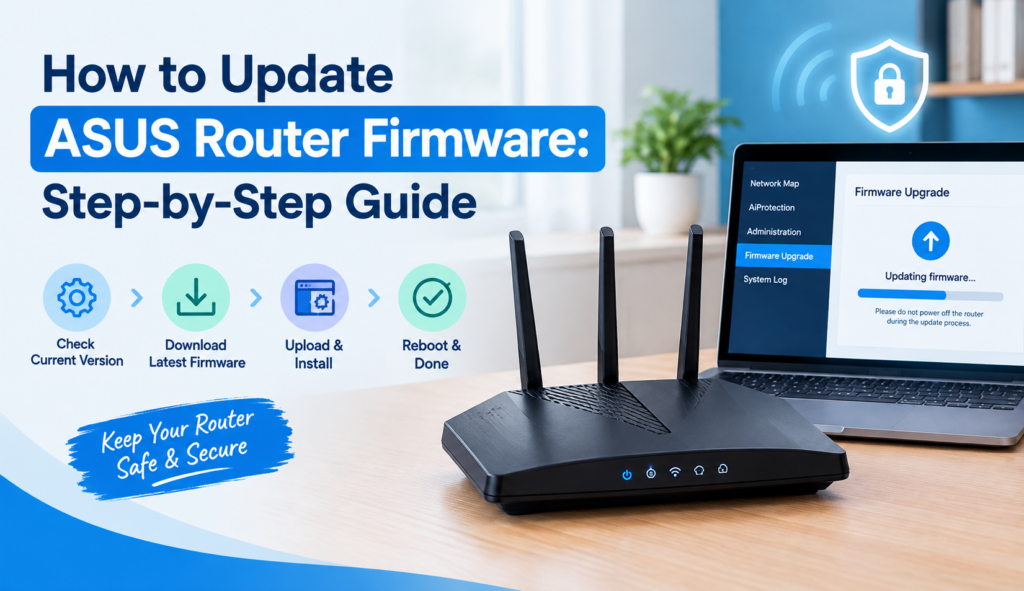
You can update ASUS router firmware through the ASUS Router App, ASUS WebGUI or by manually uploading the correct firmware file. Before updating, identify your exact router model, check the current firmware version and keep the router powered on throughout the process.
An ASUS router firmware update can improve stability, fix known bugs, strengthen security and add or improve features. ASUS regularly releases new firmware for supported router models, so keeping your device updated is an important part of router maintenance.
The update process is usually simple.
You can use the ASUS Router App if you want the easiest method. The ASUS WebGUI gives you more control. A manual firmware update is useful when the automatic update cannot find the latest version or when you need to install a specific firmware release.
This guide explains how to update ASUS router firmware using all three methods. You will also learn how to check your firmware version, verify that an update worked, troubleshoot failed updates, update AiMesh nodes and use ASUS Rescue Mode when normal installation fails.
Important: Firmware options, menu names and update behavior can vary by ASUS router model and firmware version. Always download firmware intended for your exact model.
How to Update ASUS Router Firmware
ASUS currently supports several firmware update methods, including the ASUS Router App, WebGUI and manual installation. ASUS recommends using the Router App where supported, while the WebGUI and manual method provide additional options.
Option 1 — Update with the ASUS Router App
The ASUS Router App is convenient if you want to update your router from a phone.
On supported routers:
- Open the ASUS Router App.
- Connect the app to your router.
- Open Settings.
- Select Firmware Upgrade.
- Choose Check Firmware Version.
- If a newer firmware release is available, follow the on-screen instructions to install it.
- Wait for the router to complete the update and restart.
ASUS documents the firmware upgrade feature for both Android and iOS. The exact interface can vary depending on the router and app version.
Do not close the process or disconnect the router while the firmware is being installed.
Option 2 — Update Through ASUS WebGUI
The ASUS WebGUI, often associated with ASUSWRT, gives you direct access to your router settings.
First, connect your computer or phone to the router.
Then:
- Open your ASUS router login page.
- Sign in with your administrator username and password.
- Look for a notification that a new firmware version is available.
- Select Update Now if the option appears.
- Go to Administration > Firmware Upgrade if required.
- Start the firmware update.
- Wait several minutes for the process to finish.
- Sign in to the WebGUI again after the router restarts.
ASUS currently documents the WebGUI path through Administration > Firmware Upgrade. The exact interface may differ between models and firmware versions.
Option 3 — Manually Install ASUS Firmware
Manual installation is useful when the normal WebGUI update cannot connect to ASUS servers or when you need to install a specific firmware file.
Start by finding your router’s exact model on the official ASUS website.
Then:
- Open the router’s ASUS support page.
- Go to the firmware or driver download section.
- Download the latest firmware intended for your exact model.
- Extract the downloaded archive if necessary.
- Connect your computer to the router.
- Open the ASUS WebGUI.
- Sign in.
- Go to Administration > Firmware Upgrade.
- Select the upload or firmware-file option.
- Choose the extracted firmware file.
- Start the upload.
- Wait until the router finishes updating and restarts.
ASUS specifically advises checking that the firmware file is correct for the device before uploading it. Never install firmware intended for another router model.
Which ASUS Firmware Update Method Should You Use?
The best method depends on your situation.
Update Method | Best For | Internet Needed | Difficulty |
ASUS Router App | Quick phone-based updates | Usually yes | Easy |
ASUS WebGUI | Direct router management | Usually yes | Easy |
Manual WebGUI update | Server/update problems or specific firmware | Firmware download required | Moderate |
Rescue Mode | Failed normal installation | No normal update connection required | Advanced |
For most users, the ASUS router firmware update app is the simplest option when supported. If you want more control, use the WebGUI. Choose manual installation when the automatic update does not work or ASUS specifically recommends it for your situation.
Before You Update ASUS Router Firmware
A few minutes of preparation can prevent avoidable problems.
Identify the exact router model
Check the model name printed on the router.
This matters because ASUS releases different firmware files for different devices. A firmware file for one model should not be installed on another.
If you use AiMesh, identify both the main router and nodes.
Check the current firmware version
Open the ASUS WebGUI or Router App and find the installed firmware version.
Knowing your current version helps you determine whether a newer firmware release is actually available.
It also gives you a reference point if something goes wrong.
Check ASUS release notes
Before installing the latest firmware, review the information provided with the release when available.
Look for:
- Bug fixes
- Security improvements
- Feature changes
- Compatibility information
- Known issues
- Special installation instructions
A newer firmware version is not just a number. The release notes can explain why the update matters.
Back up important router settings
If your router supports configuration backup, save your settings before performing a major firmware change.
This can be useful if you need to restore your configuration later.
Do not assume that every firmware update will erase your settings. However, having a backup is a sensible precaution, especially before manual updates or troubleshooting.
Keep the router powered on
This is one of the most important rules.
Do not turn off or unplug the router during a firmware update.
An interrupted firmware installation can cause serious problems and may require recovery procedures.
ASUS specifically warns users not to power off the router during the update process.
How to Verify the Firmware Update Worked
Do not stop as soon as the router restarts. Perform a few quick checks.
Check the installed firmware version
Log back into the ASUS WebGUI or open the Router App.
Confirm that the displayed firmware version matches the version you intended to install.
Confirm the router is accessible
Open the router settings and make sure the WebGUI loads normally.
If you cannot access the interface after the update, give the router time to finish restarting before trying additional troubleshooting.
Test internet connectivity
Open several websites or apps.
Make sure your internet connection works normally.
Test Wi-Fi on multiple devices
Connect a phone, laptop or another wireless device.
Check whether the Wi-Fi remains stable rather than testing only one device.
Check AiMesh nodes
If you use AiMesh, check the node status after updating the main router.
A node may require its own firmware update or additional attention if it does not reconnect properly. ASUS provides separate instructions for updating AiMesh node firmware.
Recheck important settings
Review important settings such as:
- Wi-Fi name
- Wi-Fi password
- WAN configuration
- Guest network
- Parental controls
- Port forwarding
- AiMesh configuration
This quick review can identify changes before they affect your normal network use.
ASUS Router Firmware Update Failed? Try These Fixes
A failed update does not always mean the router is damaged. Try these solutions in order.
Fix 1 — Check the router’s internet connection
If you are using an automatic update, make sure the router can reach the internet.
If the router cannot connect to ASUS servers, a manual firmware update may be a better option. ASUS specifically recommends the manual method when the router cannot connect to its update server.
Fix 2 — Retry from the WebGUI
If the app update fails, sign in through the ASUS WebGUI and check for the firmware update there.
The WebGUI gives you a clearer view of the router’s firmware settings.
Fix 3 — Try a manual firmware update
Download the correct firmware from ASUS and upload it through Administration > Firmware Upgrade.
This is especially useful when the automatic update cannot locate or download the firmware.
Fix 4 — Verify the downloaded firmware file
Make sure the file belongs to your exact router model.
If ASUS provides a compressed archive, extract it before uploading the actual firmware file.
Do not rename or modify the firmware file unnecessarily.
Fix 5 — Use a wired connection if possible
For manual updates, connect your computer directly to the router with an Ethernet cable.
A wired connection reduces the chance of losing communication with the router during the upload.
Fix 6 — Restart only after the update process has clearly failed
Do not restart the router simply because the process appears slow.
Firmware installation can take several minutes.
If ASUS confirms that the update has failed and the router is no longer progressing, follow the model-specific recovery instructions before taking further action.
Fix 7 — Check whether the router can still access WebGUI
If the router restarts and you can still access the ASUS WebGUI, check the installed firmware version.
If the old version is still present, try the manual update method.
Fix 8 — Use ASUS Rescue Mode if normal firmware installation fails
If normal firmware installation continues to fail, ASUS provides Rescue Mode / Firmware Restoration for supported situations.
This is an advanced recovery method rather than a normal firmware-update option.
What If There Is No Internet After the Update?
Do not immediately assume that the firmware update failed. First, check whether you can access the ASUS WebGUI. If the WebGUI works, review your WAN and internet settings.
Also check:
- Ethernet cables
- Modem or ONT connection
- WAN connection type
- ISP credentials
- DNS settings
- Router status indicators
Restart the modem or ONT only if appropriate for your network setup. If the firmware version updated successfully but internet access stopped, the problem may be related to configuration rather than the firmware installation itself.
If you need further help, use an ASUS router troubleshooting guide before performing a factory reset.
Should You Factory Reset an ASUS Router After a Firmware Update?
Not automatically. A factory reset is not something you should perform after every firmware update unless the instructions for your specific router or update procedure call for it.
ASUS’s current WebGUI update documentation does describe a factory-reset step after certain update procedures, while other ASUS guidance may vary by model and firmware.
Therefore, check the instructions for your exact router before deciding to reset.
If you do need to reset, remember that a factory reset can remove your customized router settings.
Back up important configuration information first when possible.
How to Update ASUS AiMesh Firmware
Updating an AiMesh system requires a little more attention because you have multiple devices.
Update the main router
Start by checking the firmware of the primary AiMesh router.
Use the ASUS Router App, WebGUI or manual firmware method as appropriate.
Update AiMesh nodes
After the main router is updated, check the firmware status of your AiMesh nodes.
ASUS provides options to update node firmware through the AiMesh router’s firmware settings.
Check firmware compatibility
Make sure the firmware you download belongs to the correct router or AiMesh node model.
Do not use a firmware file simply because the model name looks similar.
What to do if an AiMesh node goes offline
First, check whether the node is powered on and still within reliable network range.
Then check its status from the main router’s AiMesh settings.
If necessary, update the node’s firmware separately using the correct file and procedure.
ASUS notes that manual firmware updates apply only to the selected AiMesh router or node, so the correct firmware must be used for each device.
ASUS Firmware Recovery: When Normal Updating Fails
Firmware recovery is different from a normal ASUS firmware upgrade.
When Rescue Mode is appropriate
ASUS describes Rescue Mode as a way to upload firmware when the router cannot update normally.
It can also be relevant when the router shows abnormal power-light behavior or has problems caused by third-party firmware.
What you need before starting
You generally need:
- A Windows computer
- Ethernet cable
- Correct firmware file
- ASUS Firmware Restoration utility
- Your router’s model-specific Rescue Mode instructions
ASUS currently documents Firmware Restoration for Windows systems and provides the utility through its support pages for supported routers.
Firmware Restoration overview
The general process involves downloading the correct firmware, installing the ASUS Firmware Restoration utility, connecting the computer to the router with Ethernet, placing the router into Rescue Mode and uploading the firmware.
The exact steps can vary by model.
ASUS indicates that a slowly flashing power indicator can show that supported routers have entered Rescue Mode.
When not to use Rescue Mode
Do not use Rescue Mode simply because you want to perform a routine firmware update.
ASUS explicitly describes Firmware Restoration as a recovery method, not the regular way to update router firmware.
If the normal update works, use the standard method instead.
Common Firmware Update Mistakes to Avoid
Avoid these common mistakes during an ASUS router firmware update:
- Downloading firmware for the wrong model
- Ignoring ASUS release notes
- Turning off the router during installation
- Uploading the wrong file
- Interrupting the WebGUI upload
- Using Wi-Fi for a manual update when Ethernet is available
- Assuming every firmware update requires a factory reset
- Forgetting to check AiMesh nodes
- Repeating the update immediately without confirming whether it actually failed
- Using Rescue Mode for a routine update
The safest approach is simple: use the correct firmware, follow the instructions for your model and allow the router enough time to complete the process.
ASUS Router Firmware Update Checklist
Use this checklist before and after the update:
Check | What to Do |
Router model | Confirm the exact model |
Current version | Record the installed firmware version |
Latest firmware | Check the official ASUS support page |
Release notes | Review important changes |
Backup | Save important settings |
Power | Keep the router connected |
Firmware file | Confirm the file matches your model |
Connection | Use Ethernet for manual updates when possible |
Verification | Check the new firmware version |
Internet | Test the connection |
Wi-Fi | Test multiple devices |
AiMesh | Check all nodes |
FAQs
You can update ASUS router firmware through the ASUS Router App, ASUS WebGUI or manually by uploading the correct firmware file. For a manual update, download the latest firmware for your exact router model, open Administration > Firmware Upgrade and upload the extracted firmware file.
Yes, supported ASUS routers can be updated through the ASUS Router App on Android or iOS. Open the app, go to Settings, select Firmware Upgrade and check for a newer version. The available options and interface can vary by router model and app version.
Download the latest firmware for your exact router model from ASUS, extract the downloaded archive and sign in to the router’s WebGUI. Go to Administration > Firmware Upgrade, choose the firmware file and start the upload. Wait until the router finishes and restarts.
Check the firmware version in the ASUS Router App or WebGUI and compare it with the latest firmware listed for your exact model on ASUS’s support website. Review the release notes as well, since they explain important fixes, improvements and changes.
A normal firmware update does not automatically mean that your settings will be erased. However, the behavior can depend on the model, firmware and update procedure. Back up important settings beforehand, especially if ASUS’s instructions recommend restoring factory defaults after the update.
First, confirm the router model and firmware file are correct. If an automatic update fails, try the WebGUI or manual update method. Use a wired connection when possible. If normal installation continues to fail, ASUS Rescue Mode may provide a recovery option for supported routers.
Final Thoughts
Keeping your router firmware updated is one of the simplest ways to maintain a stable and secure home network.For most users, the ASUS router firmware update app is the easiest option. The ASUS WebGUI is useful when you want direct access to your ASUS router settings, while manual installation gives you more control over the firmware file.Before updating, confirm your exact router model and review the available firmware release. Back up important settings and keep the router powered on throughout the process.
- September 30, 2026
- Smiley Rathore
- 10:58 am